Reconnecting Your Owensboro Times App Subscription
Having trouble accessing your Owensboro Times subscription on the app or website? Don’t worry! This guide will help you reconnect your account if you subscribed through the Apple App Store. We’ll walk through two common situations: creating a web account for the first time and restoring your subscription for an existing account.
We are in the process of eliminating the in-app subscription option. If you are a new subscriber, please subscribe through the website. If you are an existing subscriber, please follow the instructions below to restore your subscription or cancel your subscription in the app and resubscribe through the website.
If you subscribed through the app (no website account yet)
So you subscribed using the Owensboro Times iOS app but never created an account on the Owensboro Times website. Since Apple doesn’t share subscriber info with us, you’ll need to create a web account to link with your app subscription. Here’s how to get set up:
- Open the Owensboro Times app on your iPhone or iPad.
- Tap the gear icon (⚙️) in the top-right corner of the app’s screen to open the Settings menu.
- In the Settings menu, tap on “Get Web Access.” This option is for subscribers who don’t have a website login yet.
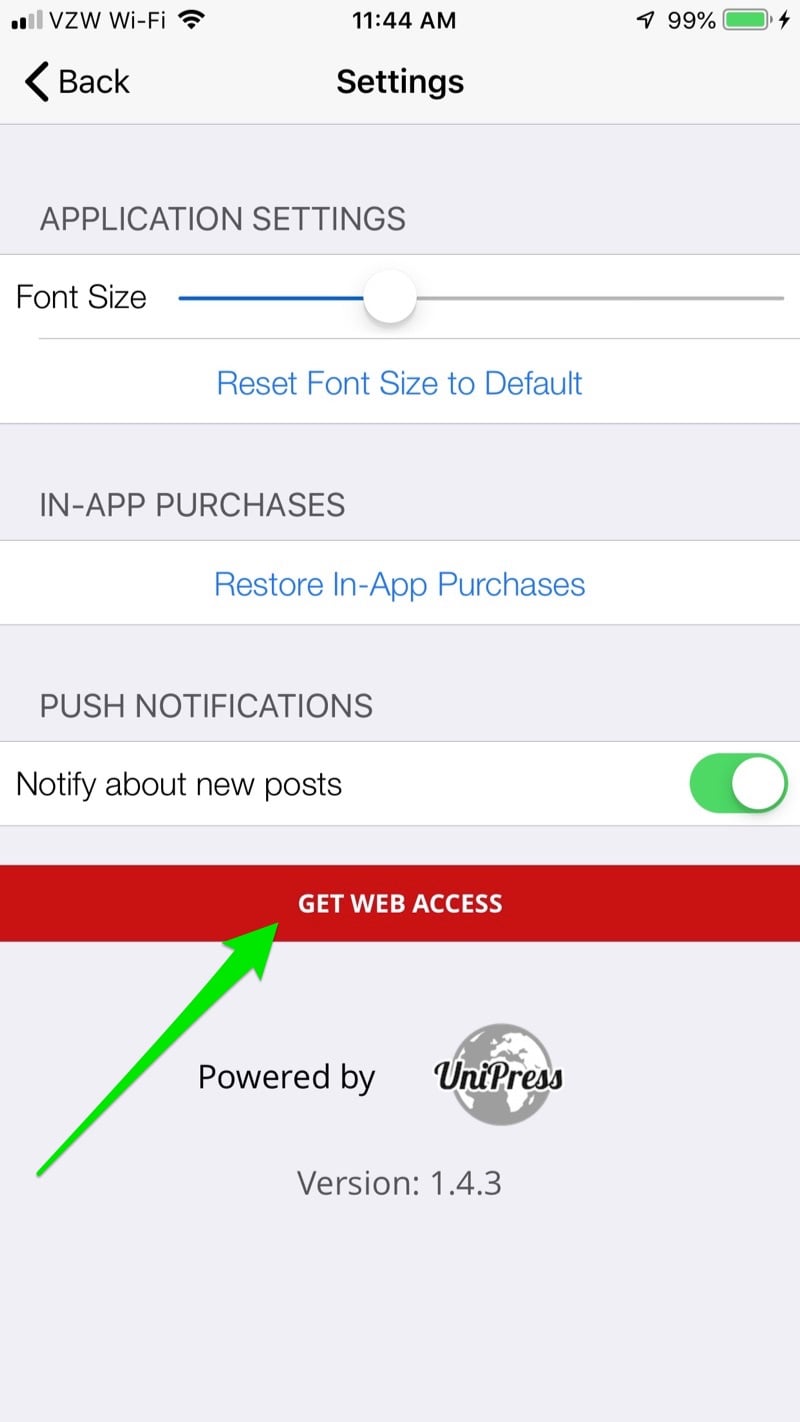
- Create your Owensboro Times account: you’ll be prompted to enter an email address and create a password. Follow the on-screen instructions to set up your account.
- Use an email you have access to, and choose a secure password you can remember.
- You might need to check that email for a confirmation link and click it, if instructed.
- All set! Your new Owensboro Times web account is now linked to your in-app subscription. You can use this email and password to log in on the Owensboro Times website as well as within the app for full access.
Next time you visit the Owensboro Times website on a computer or browser, use the Login option and enter the same email/password you just set. You’ll then be able to read subscriber-only articles on the website too.
If you already have a web account
Use these steps if you already created an Owensboro Times account in the past (for example, you had web access before) but the app isn’t recognizing your subscription, or you got logged out. In this case, you’ll simply reconnect your existing subscription by restoring your purchase:
- Open the Owensboro Times app on your device. Go to the menu (tap the hamburger icon ☰️ in the top-left corner). If you’re logged out, you might see a “Login” button in the menu – tap that and sign in with your Owensboro Times account email and password first.
- Log in to your account, if you haven’t already. Enter the email and password for your Owensboro Times account (the one you use on the website). After logging in, tap the gear icon (⚙️) in the top-right corner of the app’s screen to open the Settings menu.
- Tap “Restore In-App Purchases.” This option is usually in the Settings menu (or sometimes under a “Subscribe” section if you’re not logged in yet).
- Wait a moment while the app communicates with the Apple App Store. It’s checking for any active subscriptions on your Apple ID.
- Subscription Restored: If your App Store subscription for Owensboro Times is active, the app will recognize it and re-activate your subscriber access. You might see a confirmation message like “Purchases Restored” or you may simply notice that subscriber content is now unlocked.
- No extra charge: Don’t worry – tapping “Restore In-App Purchases” will not charge you again. It only checks for an existing subscription purchase and links it to your Owensboro Times account.
Now you should have full access again. You can read all the subscriber-only stories in the app (and on the website if your account is linked).
Troubleshooting Tips
If the above steps aren’t working, here are a few friendly troubleshooting tips to try:
- Check Your Internet Connection: Make sure your iPhone/iPad is connected to the internet (Wi-Fi or cellular data). The app needs to communicate with our servers and Apple’s servers to verify your subscription.
- Use the Right Apple ID: Be sure you’re signed in on your device with the same Apple ID that you originally used to subscribe to The Owensboro Times. If you have multiple Apple accounts, the subscription might be on a different one.
- Is Your Subscription Active? Double-check that your Owensboro Times subscription is still active. On your iPhone, go to Settings > [Your Name] > Subscriptions and look for The Owensboro Times in the list. If it expired or wasn’t renewed, you may need to resubscribe.
- Update the App: Make sure you have the latest version of The Owensboro Times app from the App Store. An outdated app could occasionally cause issues, and updates often fix bugs.
- Restart the App/Device: Sometimes simply closing the app and reopening it (or restarting your device) helps refresh the connection to Apple’s subscription service.
- Still No Luck? Contact Us: If you’ve tried the steps above and still can’t access your subscription, we’re here to help! You can reach out to Owensboro Times support by [contact form or email/phone]. We’ll be happy to assist in getting your account reconnected.